
Part 1: Installation and Basic Setup
- Find the App: Search for the "plugilo" app in the Shopify App Store or navigate directly to https://apps.shopify.com/plugilo-plugin
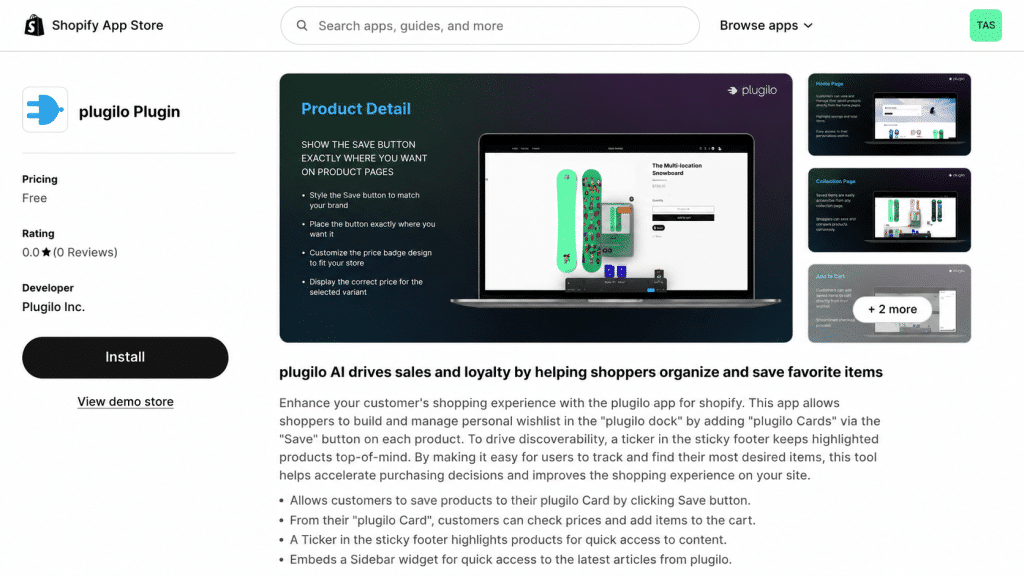
2. Install: Click the Install button to add the app to your Shopify store.
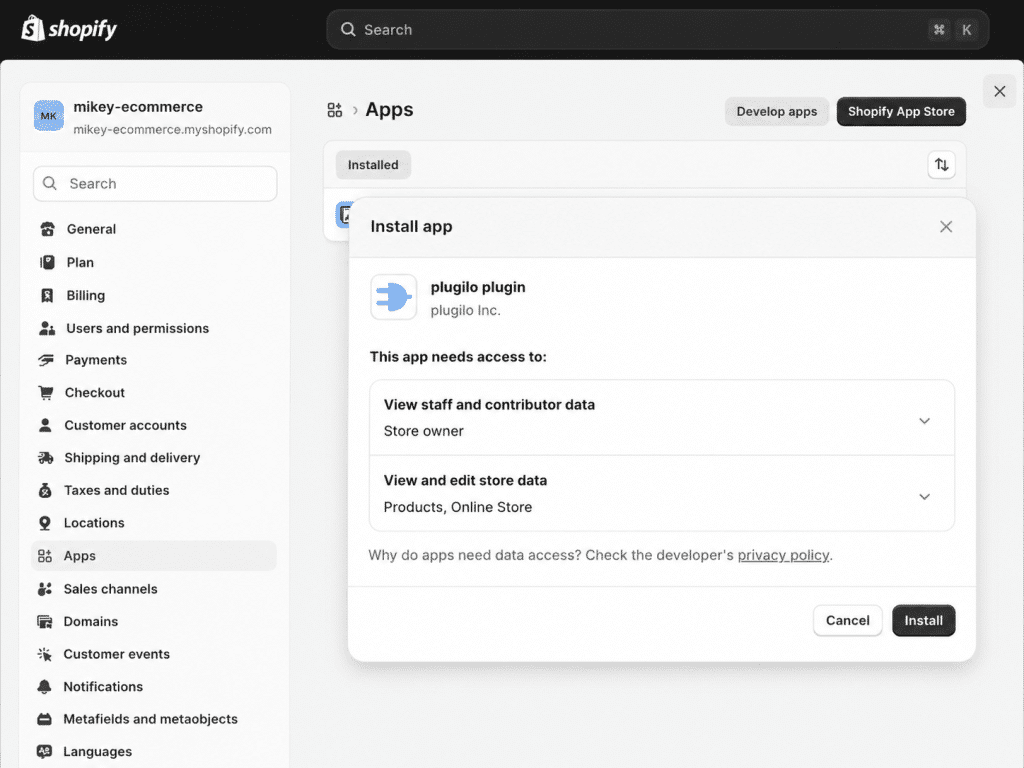
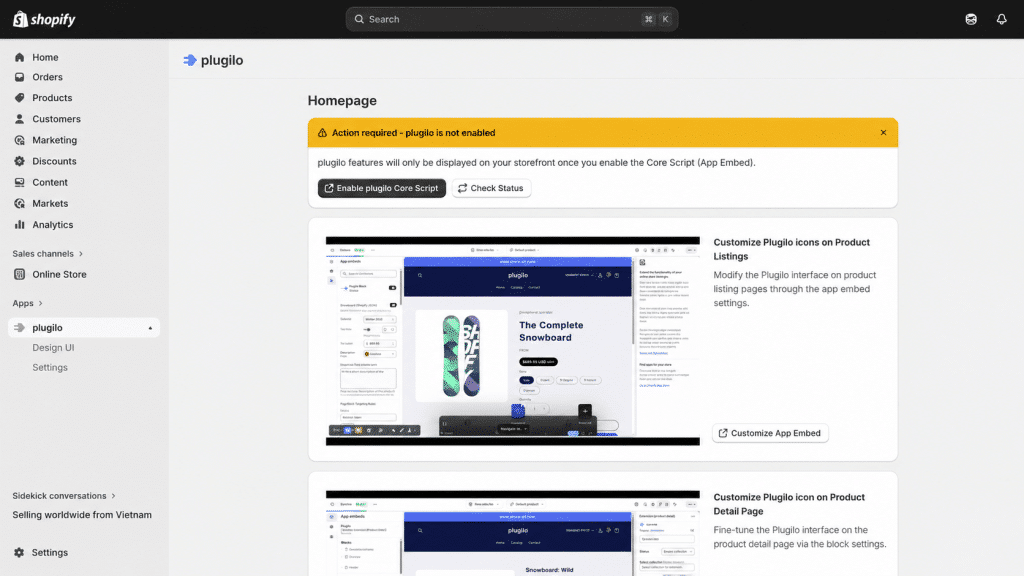
3. Enable Core Features: Once installed, open the plugilo app settings and locate the core options:
Click to Enable plugilo Core Script
Toggle on the plugilo Dock.
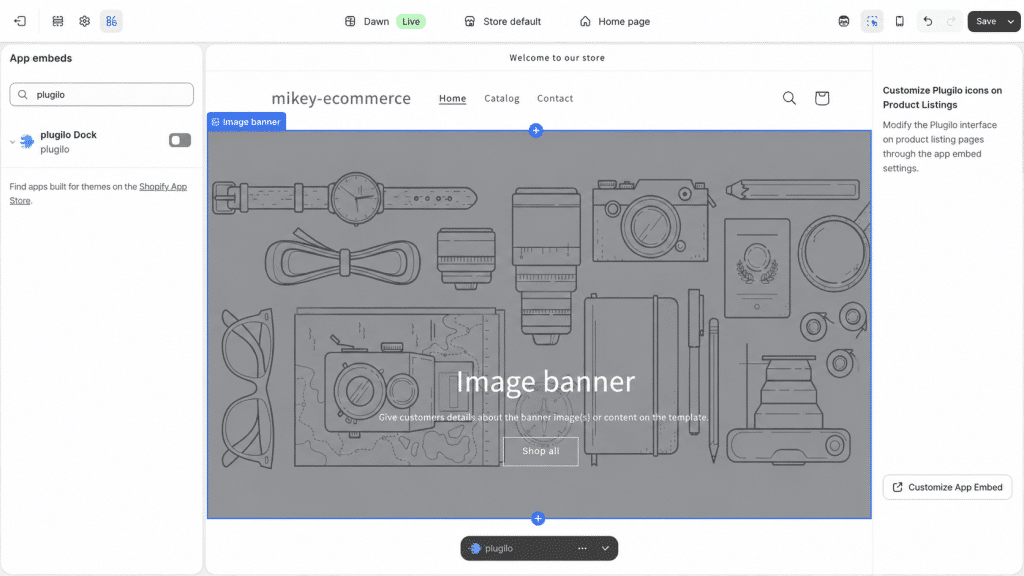
4. Customize (Optional): Adjust any desired settings, such as labels or button colors, to match your store's branding.
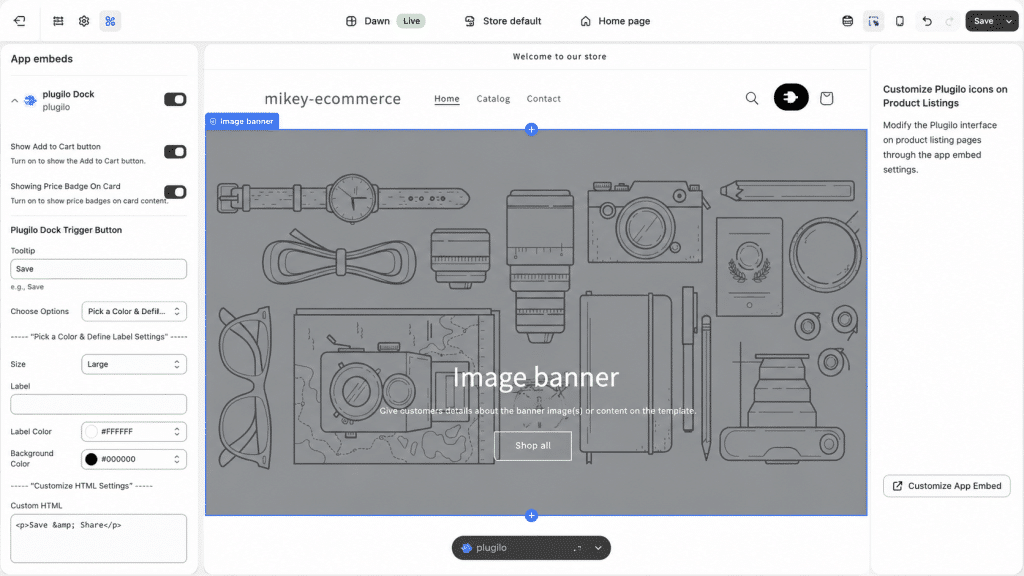
5. Save: Click Save to apply your changes.
Note: Completing these basic setup steps will automatically enable the plugilo dock and add the plugilo button to your menu and product listing pages.
Part 2: Adding the plugilo Button to Product Detail Pages
To display the plugilo button on individual product pages, you need to add it as a block within your theme editor.
1. Open the Theme Editor: From your Shopify admin, go to Online Store > Themes and click Customize on your current theme.
2. Navigate to a Product Page: Use the dropdown menu at the top of the editor to navigate to Products > Default product (or select any specific product).
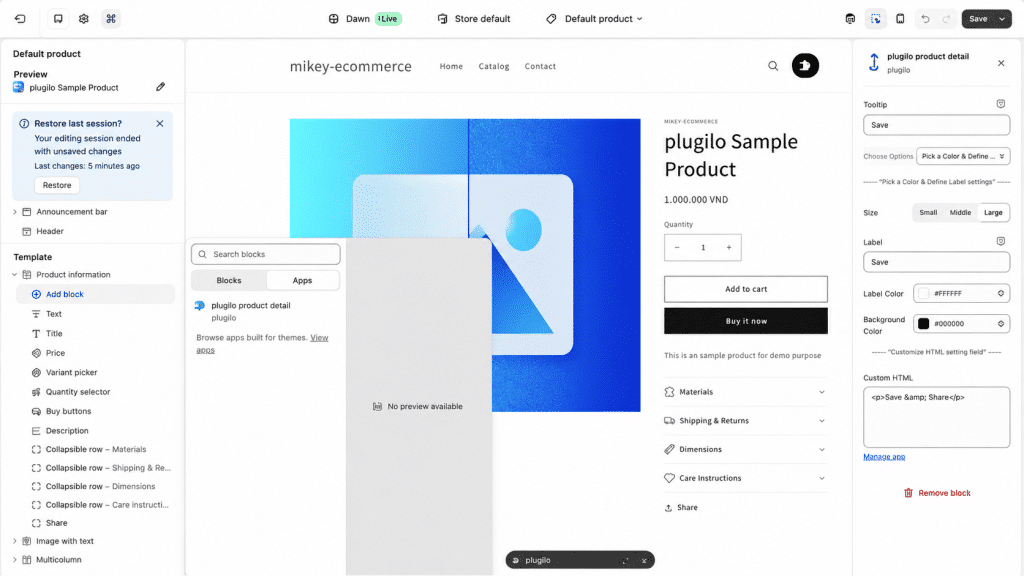
3. Add the App Block: In the left-hand sidebar under the "Product Information" section, click Add block.
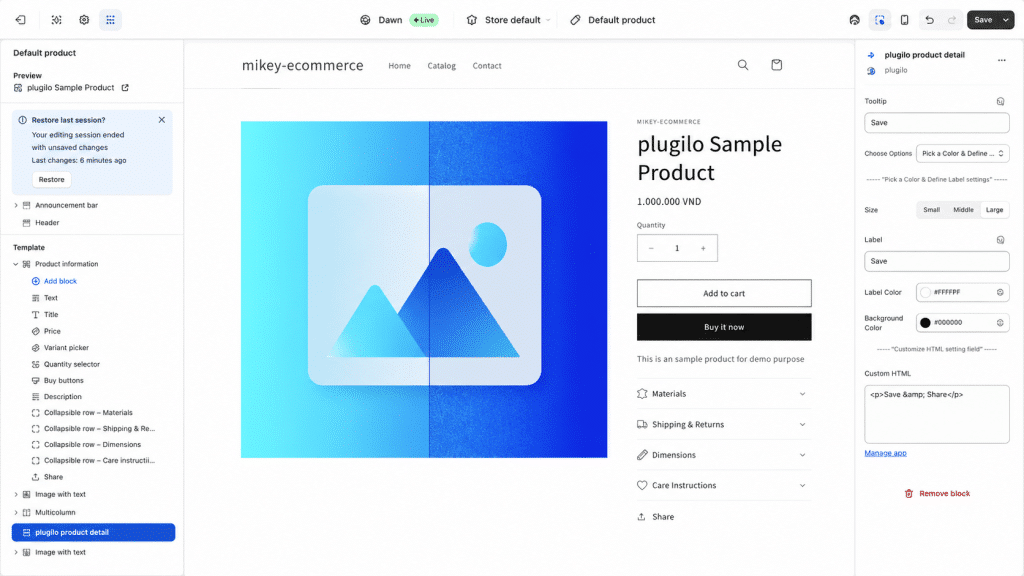
4. Select plugilo: Under the Apps category, select the plugilo product detail block.
5. Position and Save: Drag the block to your desired position on the page, update any specific block settings if necessary, and click Save in the top right corner.
Part 3: Adding the plugilo Button to Product Grids (e.g., Featured Products)
The plugilo plugin works great on most popular themes. However, to ensure plugilo works perfectly on all types of interfaces (themes), we provide Selector Settings (Advanced Settings). This setting helps the application accurately determine where to display the plugit icon on product listing pages (Collection Pages, Search Pages, etc.).
Below is a detailed guide to help you configure these parameters correctly.
- Quick Start Guide:
- Open App Settings: Go to Apps > plugilo > Settings > plugit Trigger Collection.
- Locate Settings: Scroll down to the "Listing" configuration sets.
- Target the Grid: Input the specific CSS Class or ID of the product listing elements from your theme.
- Save: Click "Save Settings" to apply the icons to your product grids.
- Verify: Go back to your website and refresh the page (F5) to see if the plugit icon appears in the correct position.
- Meaning of the 4 Selector Fields In each configuration set (Listing), you will see 4 fields to fill in:
- Product Grid Container Selector:
- Meaning: The class or ID that wraps the entire product grid.
- Examples: #ProductGridContainer, .collection-grid, .products-list
- Product Item Selector:
- Meaning: The frame surrounding each individual product in the grid.
- Examples: .grid__item, .product-card, .col-md-4
- plugit Save Trigger Selector:
- Meaning: The specific location inside each product where you want the plugit icon to appear (typically placed next to the price or product name).
- Examples: .price, .product-item__title, .product-info
- Product Link Selector:
- Meaning: The tag containing the link to the product page.
- Examples: .card__heading a, a.product-link, h3 > a
- Product Grid Container Selector:
- How to Find the Correct Selector (Using Inspect Element)
You don't need to be a developer to do this. Just follow these steps:- Step 1: Open a Collection page on your store.
- Step 2: Right-click on a product and select Inspect.
- Step 3: The source code window will appear. Look for the following:
- Find the tag wrapping the entire product grid -> copy its ID or class (e.g., #ProductGridContainer, .slider-mobile-gutter).
- Find the tag wrapping that individual product -> copy its class (e.g., .grid__item).
- Find specific location inside each product (e.g., .price or .card-information)
- Find the <a> tag containing the product link -> copy its class (e.g., .card__heading a).
- Step 4: Copy these values into the corresponding fields in the plugilo settings page.
Tips: ID selectors usually start with a hash # (e.g., #id-name) and Class selectors start with a dot . (e.g., .class-name).
- Using Multiple "Listings" (Add More Listing) plugilo allows you to add up to 8 configuration sets. This is extremely useful if:
- Your Collection page has a different structure than your Search page.
- You have a "Related Products" section at the bottom of the page and want to display the plugit button there as well.
- Each "Listing" will correspond to a different product listing area on your website
Part 4: Price Badge and Add to cart Button Setting
- Price Badge – Quick Guide
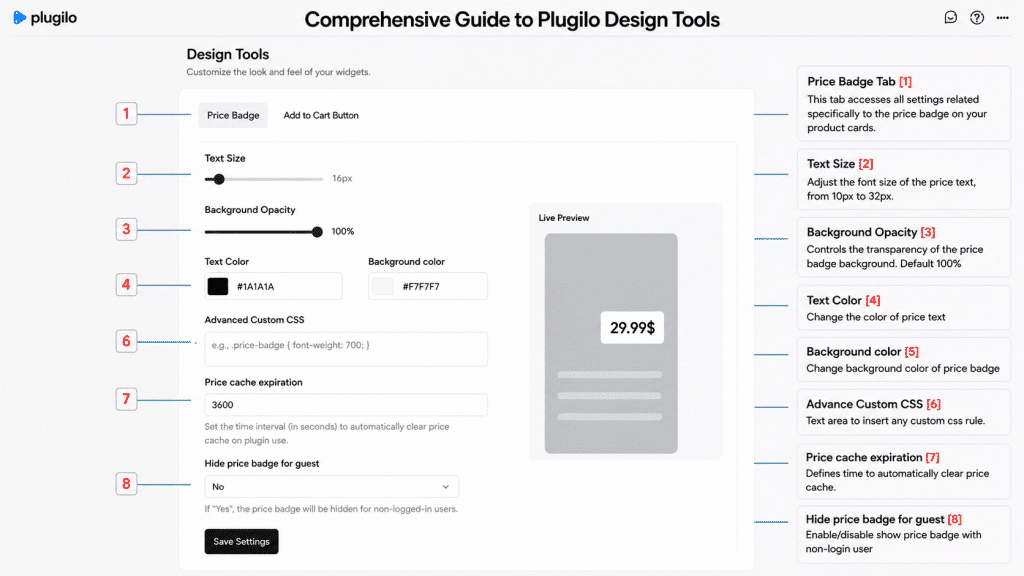
The Price Badge lets you display a styled price label directly on your product cards.
How to Set It Up
- Go to plugilo → Design UI → Price Badge
- Configure the following:
- Text Size: Adjust the price font size
- Background Opacity: Control transparency of the badge
- Text Color: Set price text color
- Background Color: Choose badge color
- Advanced Custom CSS (optional): Add custom styling (e.g., font-family, weight)
Additional Settings
- Price Cache Expiration: Set how often (in seconds) the price refreshes (default: 1800)
- Hide Price Badge for Guests: Choose Yes to hide prices for non-logged-in users
Tips
- Ensure strong contrast between text and background
- Match colors with your Shopify theme for consistency
Final Step: Click Save Settings to apply changes.
2. Add to Cart Button – Quick Guide
The Add to Cart Button lets customers quickly purchase from product cards.
Setup
Go to plugilo → Design UI → Add to Cart Button Customize
- Icon Style: Choose cart icon design
- Button Text:
- Example: “Buy Now”
- Leave empty to show icon only
- Background Color: Set button color
- Text Color: Set label color
Preview
- Use the Live Preview panel to see changes instantly.
- Click Save Settings to apply
Tips
- Keep button text short and action-focused (Buy Now, Add to Cart).
- Ensure strong contrast between text and background
- Match colors with your Shopify theme for consistency
Part 5: Campaign Settings
Campaign settings allow you to add plugilo widgets (such as the Sidebar or Ticker). Showcase highlighted products in your customers' preferred locations to boost engagement on your website
- Quick Start Guide
- Open App Settings: Go to Apps > plugilo > Settings > Campaign Settings.
- Locate Features: Find the "Enable Sidebar" and "Enable Ticker" options.
- Embed Code: Paste your unique plugilo iframe code into the "Embed Code" field.
- Save: Click "Save Settings" to activate the widgets on your store.
- Verify: Go back to your website and refresh the page (F5) to see.
- Meaning of the settings
- Enable Sidebar:
- Option: Select "Yes" to activate the plugilo Sidebar on your website, or "No" to temporarily hide it.
- Note: When enabling the Sidebar, ensure you have pasted the correct embed code in the Embed Code section below.
- Enable Ticker:
- Option: Select "Yes" to display the Ticker bar on your website.
- Note: Similar to the Sidebar, this feature requires a valid embed code to function.
- Embed Code:
- Meaning: This is the snippet that links your Shopify store with the settings you created on the plugilo Dashboard (plugiloinc.com).
- Format: The embed code must start with an <iframe... tag.
- Enable Sidebar:
Note: How to receive the Embed Code:
Contact the plugilo administrator to receive the embed code for your website.